UI Samples
This section provides UI examples. While it is not required to design the mobile application UI in this exact manner, these examples illustrate Ensenta’s mobile best practices.
Log In
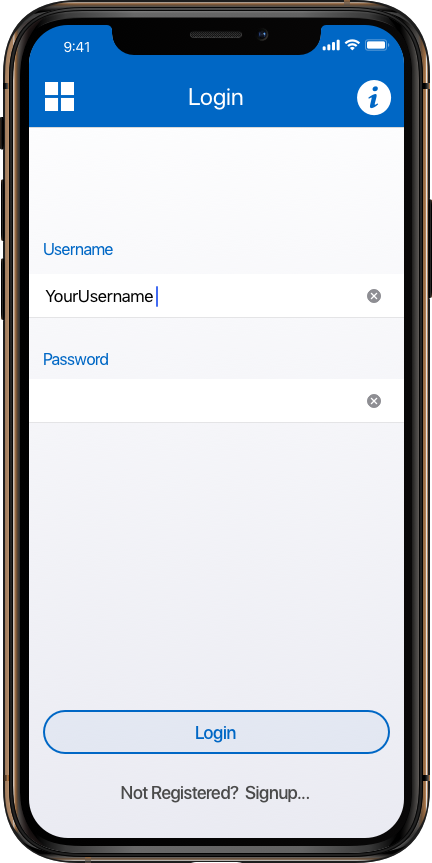
The following UI examples illustrate the importance of when to call StartSession to Ensenta. Ensenta supports functionality as it relates to End-User eligibility, limits, messaging, etc.
 | Related API Method(s):
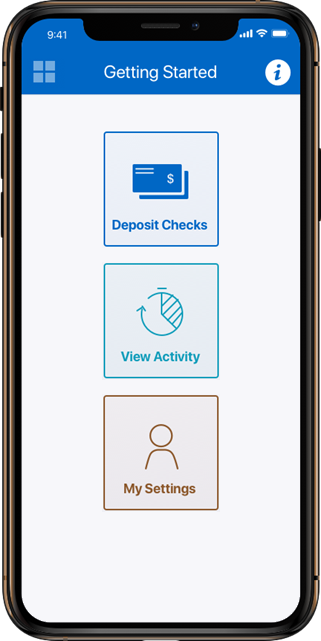
It is important NOT to call StartSession to Ensenta at this stage. While your UI design may have a need for it (e.g. showing Ensenta’s deposit history on the first page after the EU logs in), in some cases this may result in additional fees to the Financial Institution. For example, credit unions leveraging the Shared Branching network incur a fee each time Ensenta performs a StartSession as these configurations require a member inquiry during the StartSession. Consult with your Integration PM if there is need to call StartSession upon mobile application log-in. |
 | Related API Method(s):
|
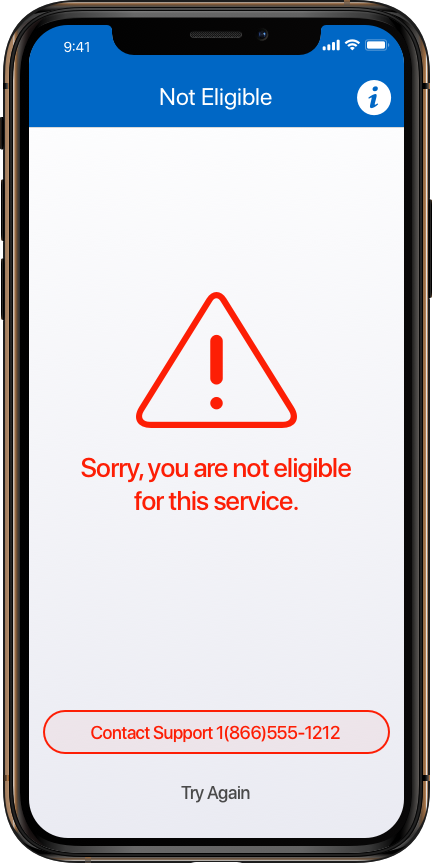 | Regardless of how End-User eligibility is handled, when the End-User selects the deposit menu, a StartSession must be called immediately to Ensenta. The following information is also determined and sent back in the response during the StartSession phase:
|
Terms (Optional)
Ensenta provides an optional set of API methods for the purposes of displaying terms and conditions text to an End-User, as well as allowing the End-User to accept the terms. Note that Ensenta will not be able to provide any sample language for terms and conditions.
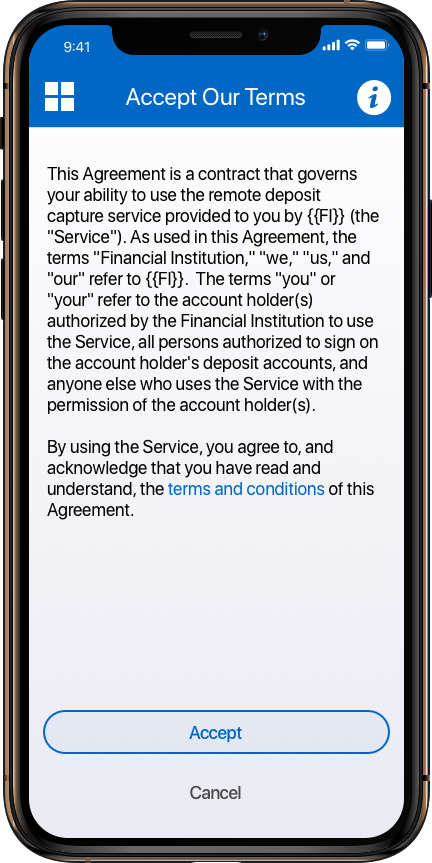 | Related API Method(s):As an option, Ensenta can host terms that can be displayed in the mobile application. If terms are required, this will be communicated to the mobile application as part of the StartSession response. Based on this, the mobile application should call GetTerms to retrieve the terms of service text (provided to Ensenta by the Financial Institution) and AcceptTerms to record that the End-User has accepted terms (see GetTerms). Ensenta can provide a report identifying when an End-User has accepted terms. |
Check Capture Process - Happy Day Scenario
The following screenshots provide an example of a Multi-Check per deposit user experience. While it is not required to design the mobile application in this manner, best practices indicate that the following should be implemented:
-
Video Image Capture – Use Mitek’s MiSnap video capture — it enables the End-User to capture images for a single check quickly and effectively. It leverages the device’s video component and requires no focusing or manual capture by the End-User. The MiSnap SDK is provided through Ensenta
-
User Entered Amount for Check – It is important not to rely solely on OCR (optical character recognition) – by requiring an End-User entered amount, there is an amount the End-User can use to verify that OCR is accurate. This allows Ensenta to turn on the Amount Variance related-risk factors for additional risk mitigation.
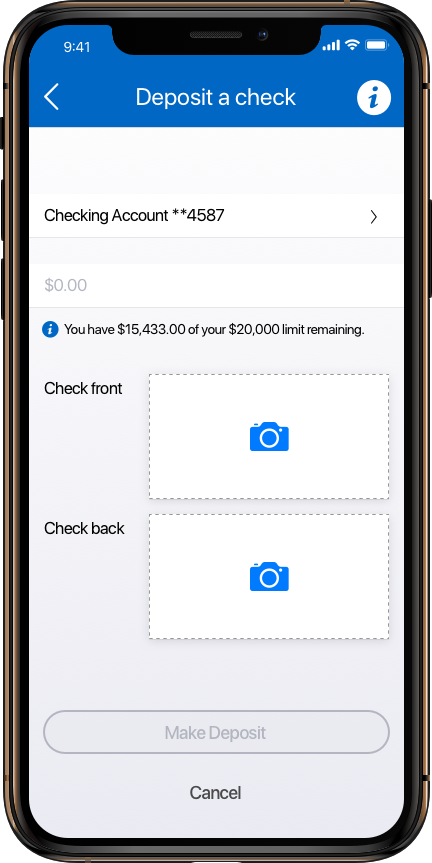 | Related API Method(s):Once the mobile application receives a successful StartSession response, data from the response can be used to populate certain elements on the deposit form (see Log In). Accounts returned in the StartSession response should be displayed in the deposit-to menu/dropdown. If using limits, limits will be returned as part of the GetSessionInfo response. Limits should be displayed prior to the End-User beginning the check capture process so the End-User’s check is not rejected later in the UI (Ensenta will not allow a successful PostDepositBatch if the End-User exceeds their limit(s)). It is important to call GetSessionInfo for each new CreateDepositBatch, if depositing multiple checks in a single session, so that the End-User always has the most up to date limits. Once the End-User selects the account, the mobile application should call CreateDepositBatch, so that back-end batch creation processes can begin while the End-User is entering the amount and capturing the front and back check images. |
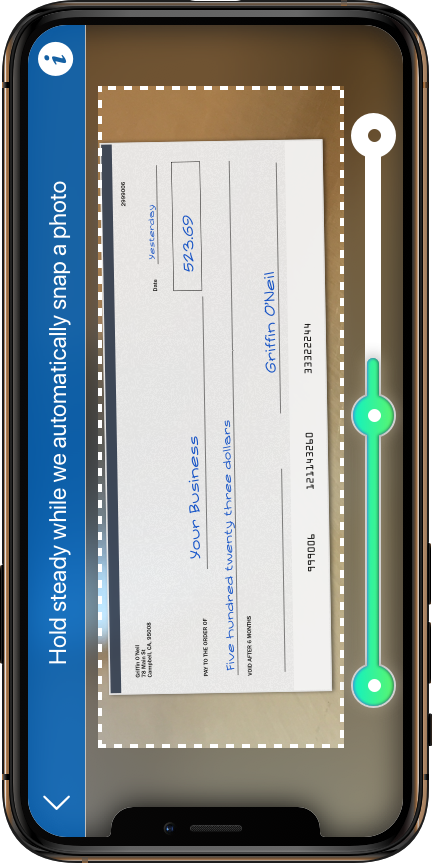 | During the actual check image capture process, it is recommended that Mitek’s MiSnap is used. MiSnap is a video capture component that is installed on the app for the sole purpose of capturing the image. Note that there are additional requirements for sending the image to Ensenta (see Mitek’s Programmer’s Guide outlining image requirements). If the mobile application is not using MiSnap and is using regular camera capture, it is highly recommended that the mobile application includes an in-frame photo guide to assist the End-User in positioning the check properly for the best image capture results. |
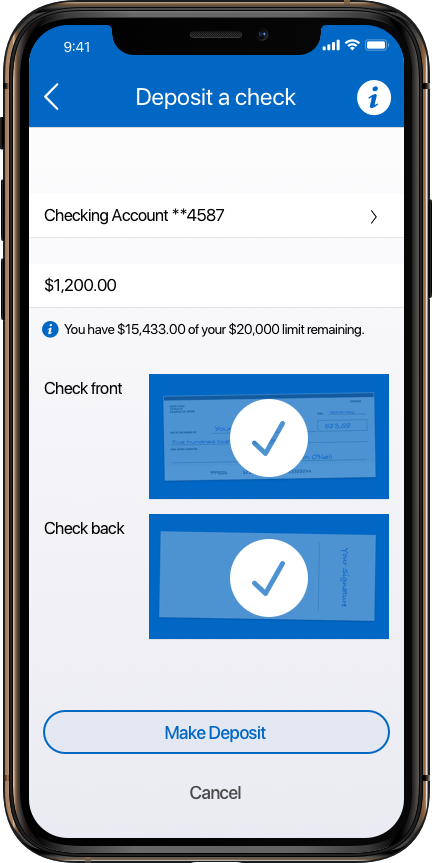 | Related API Method(s):Once the amount is entered and the front and back images are captured, the mobile application should call AddDepositItem. The End-User entered amount must be included in the Amount field of AddDepositItem. Check images must meet requirements as specified in Mitek’s Programmer’s Guide outlining image requirements. Upon successful AddDepositItem, GetDepositBatchSummary, then GetDepositItem should be called. In a happy day scenario, GetDepositItem will return no Severity=3 (reject) risk factors or IsConfirmable=true risk factors. The example UI is showcasing a stateful app where it can retain the original images taken by the End-User and display them within the app. If you have a stateless app and still want to present the check images, you may utilize the GetCheckImage method to retrieve the associated check images from Ensenta; the images retrieved this way will not be the original images, but instead the binzarized (black and white) image as stored on the Ensenta side. PostDepositBatch can either be called immediately after GetDepositItem (happy day scenario) or after the End-User confirms the deposit on an additional screen, in order to officially complete the deposit. |
Receipt
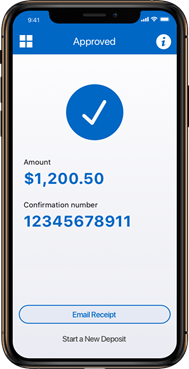 | Related API Method(s):
As an option, the mobile application UI can ask the End-User to type in an alternate email address. If email alerts are activated, they can be sent to the email address that is supplied to Ensenta in the StartSession, or Ensenta can send the email alerts to an alternate email address in lieu of or in addition to the email address in StartSession. An email address typed in by the End-User should be sent to Ensenta using the EmailReceipt API method. |
Rainy Day Scenarios
Handling rainy day scenarios gracefully is critical to balancing a good user experience while protecting the Financial Institution from risky transactions and potential loss.
The following examples illustrate the three different types of non-happy day scenarios, as well as UI examples for each.
Reject
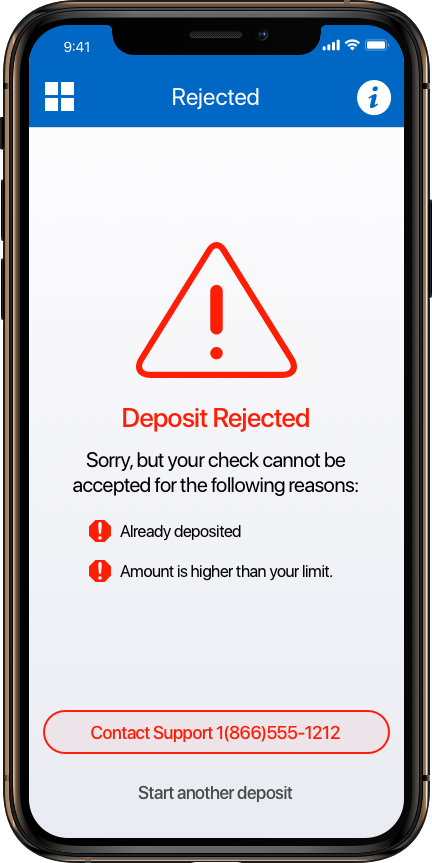 | Risk factors that are set to Reject (Severity = 3) indicate an item is not to be accepted during the point of presentment. Reasons for a reject include items previously deposited, items above a threshold amount, or items that have been flagged as suspicious or fraudulent through Ensenta’s risk mitigation engine. Related API Method(s):The Severity = 3 Reject response for GetDepositItem will include the customizable message that should be displayed to the End-User. Do not hardcode messages – messages can be customized at the server level on the Ensenta side. Best practices suggest risk factors be displayed as a list, since more than one risk factor can trigger for a check. |
IsConfirmable
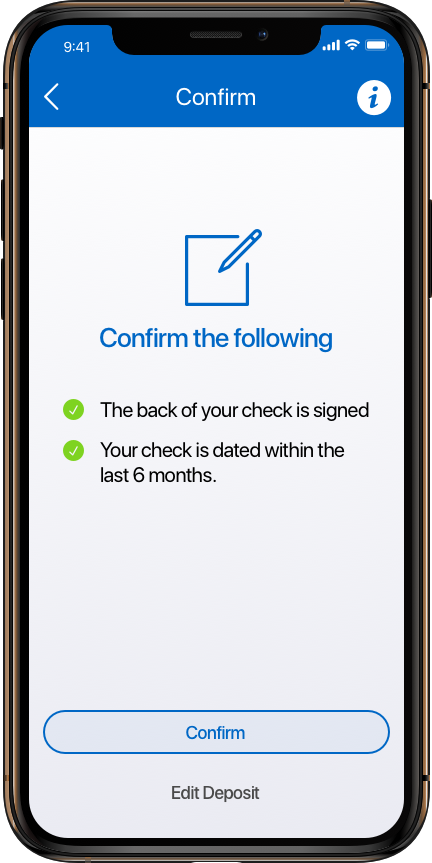 | Risk factors that return a Severity=1 and IsConfirmable=true during the evaluation stage indicate that the End-User should either confirm or review and fix a potential issue before the deposit is submitted. While the End-User should be encouraged to review these potential issues, the End-User is still able to submit this check for deposit. An example of an IsConfirmable risk factor includes asking the End-User to confirm the back of the check was signed. Related API Method(s):The IsConfirmable=true response for GetDepositItem will include the customizable message that should be displayed to the End-User. Do not hardcode messages – messages can be customized at the server level on the Ensenta side. Best practices suggest risk factors be displayed as a list, since more than one risk factor can trigger for a check. If the End-User updates the amount or front/back images for an item, send an UpdateDepositItems with the correction. |
History (Optional)
History must be called in two separate steps as Ensenta does not allow a mobile application to call for data and images within the same call, to ensure a good End-User experience as it relates to speed and performance. Mobile applications should first call GetAccountTransactionHistory, then GetAccountTransactionCheckImage, as outlined in the Supported Sequences section of this document, History (optional).
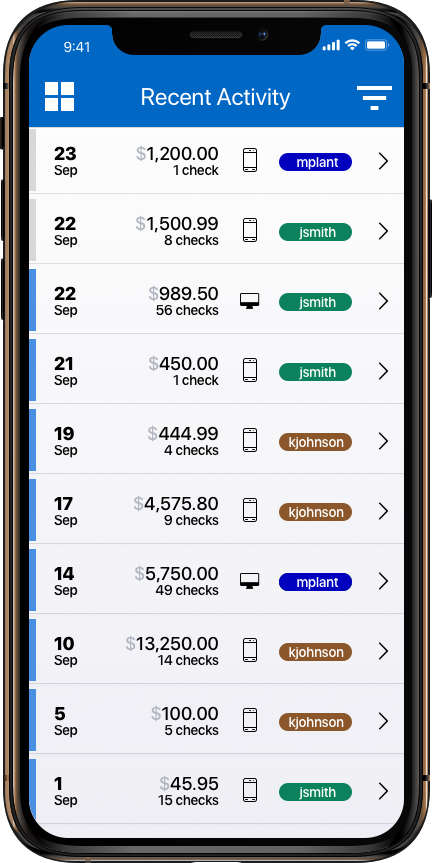 | Related API Method(s):When calling GetAccountTransactionHistory, Ensenta will return transaction and check level information in the response. The number of days of returned history is configurable, up to a maximum of 180 days. For a single check scenario, there will be one check per deposit. If it is anticipated that there will be a large volume of transactions within the configured number of days, an additional option is to limit the number of transactions in the request, for performance reasons. Ensenta recommends setting MaxNumberofTransactions to 50 in your GetAccountTransactionHistory request. In addition to details regarding the batch, individual check, and user, Ensenta can return information regarding which channel the check was deposited through (e.g. mobile vs desktop), as Ensenta supports configuring shared history if the Financial Institution desires. |
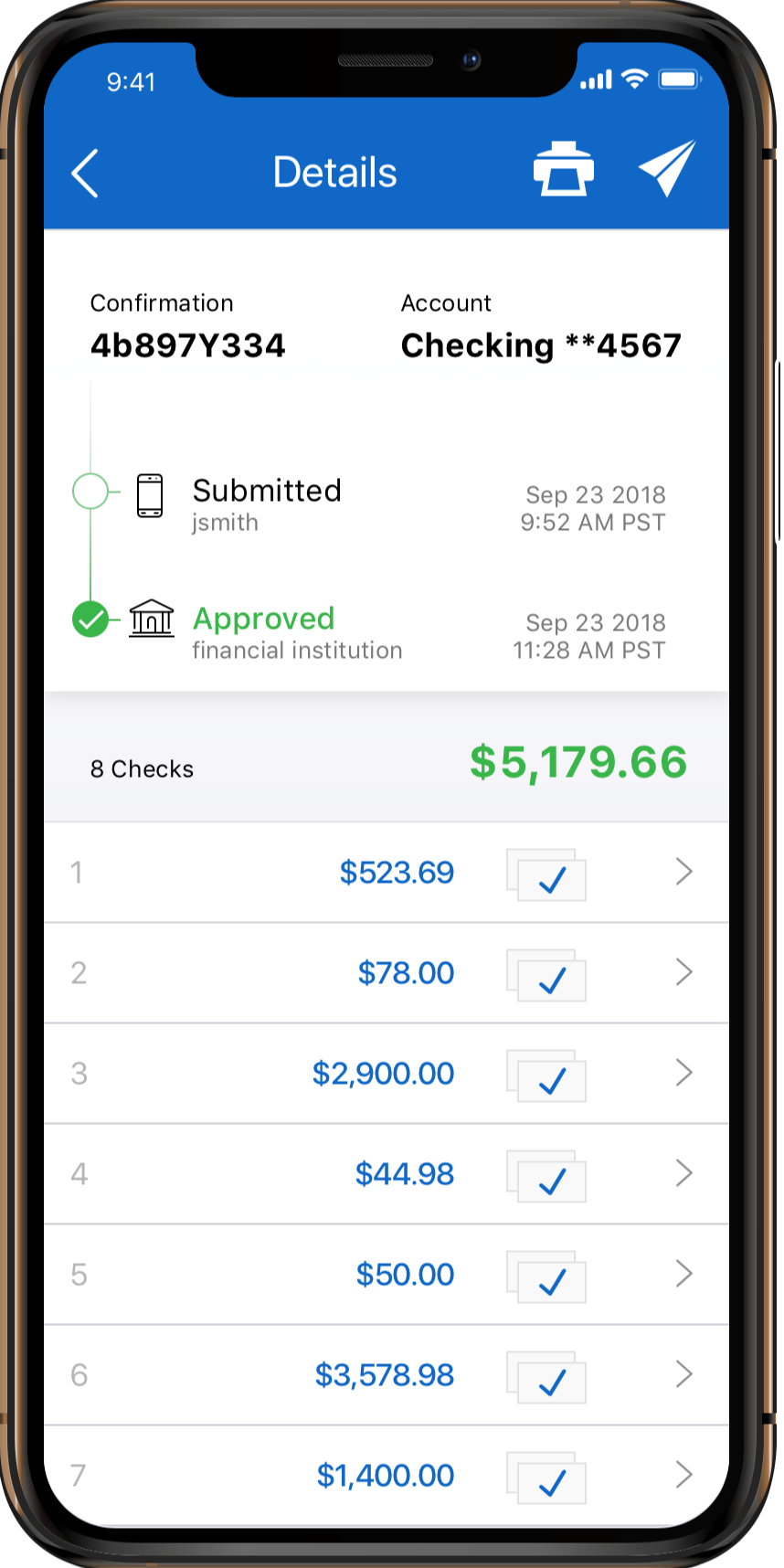 | |
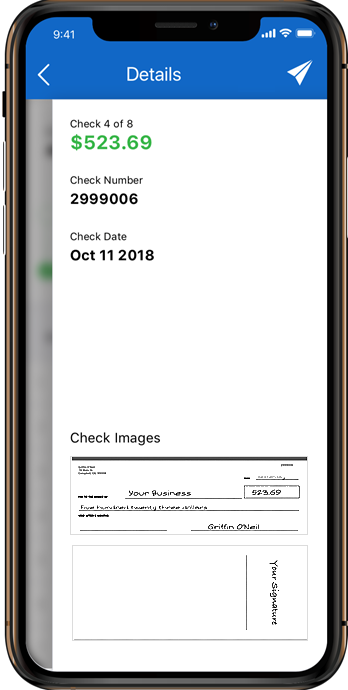 | Related API Method(s):Once the user selects a specific check to view, the mobile application can call GetAccountTransactionCheckImage if displaying images is supported. Images returned in the response are the binarized images (not the original images sent to Ensenta during AddDepositItem) and the MICR will be cropped from the front image. |
General Error Handling
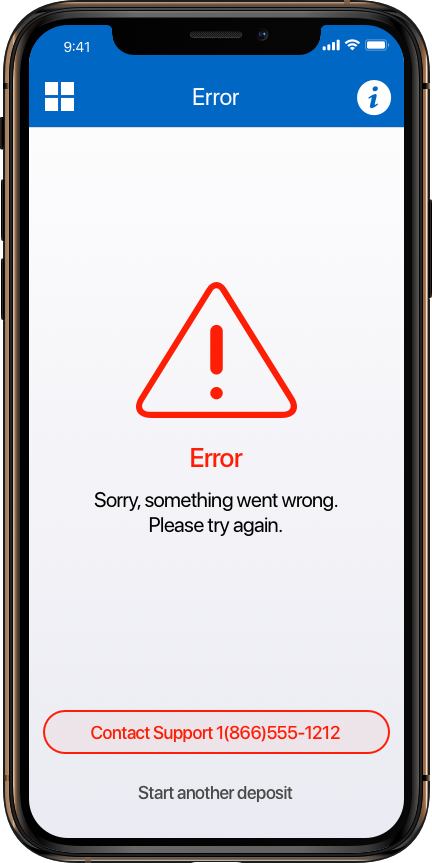 | Related API Method(s):
|