Setup & Configuration
Setup & Configuration
To configure SmartWatch, EPS will need to know how to communicate with the subscriber’s system. Below are the key elements and selections required to customize the communications.
In order to setup a subscription, please download and fill out the JHA SmartWatch Alerts Setup Form located in the Downloads section and return it to EPS.TechIntegrations@jackhenry.com. An EPS technical contact will guide integrators through filling out the required information if needed.
- URL – URL to send the SmartWatch message to. It will require HTTPS when in active mode.
- HTTP Method – PUT or POST, depending on how you would like to receive your messages via HTTP.
- Format – JSON. This is the format of the body of the HTTP request.
- Hash Algorithm – HMAC SHA256 or HMAC SHA512. These are the currently supported algorithms we use to help you verify the message is from EPS. If for some reason we need to stop using an algorithm, we will publish an expiration date and provide new algorithms to utilize.
- Secret Token – Generated by EPS and utilized by both systems to verify the message hash.
- Message Types – The contents of the message sent in the body of the request. It also refers to the type of message sent in the header of the request.
- Message Options – Each type of message will have different options that can be set. See the “Message Options” section below for more details.
- Encoding – UTF8. The encoding of the message body sent in the HTTP request.
- Mode – Deactivated, Test, Active, Suspend, Deleted. The consumer can choose from these options to set the configured URL for message sending.
- Deactivated – No messages sent.
- Test – Only test messages are sent.
- Active – Live and Test messages are sent.
- Suspend – No messages sent.
- Deleted – No messages are sent.
- Email – Email of person to contact when changes to the certificate occur and to alert the subscriber when transactions have not been received after 1 hour.
- Product Filtering – Describes which products you should receive messages for RDA, RDC, mRDC or All.
Subscriptions vs Providers
In order for messages to start passing to your listening endpoint, EPS will need to have a subscription in place and a provider that will send messages to that subscription.
Subscription:
A subscription is the channel through which the messages will flow to the subscriber’s system. The subscription will need to have a URL listening endpoint and a provider entity that the transactions will come from. You can provide the values for the listening endpoint, a provider, and several other configurable fields/values as well in the JHA SmartWatch Alerts Setup Form. You will need to submit a separate setup form for each new subscription.
Provider:
The provider is the entity that submits the transactions that will trigger messages to the subscription. This can be an FI/Partner entity, an individual merchant entity, or an RDA entity. If you want webhook messages from only a specific merchant entity or an RDA entity, that entity will need to be setup as the provider. You can specify on your setup form if you need only a specific merchant as your provider for a given subscription. If no merchant entity is specified as the subscription’s provider, the owner entity will be used (this would provide transaction events from all of your merchants).
Product Filtering
Subscriptions can provide all transaction events, or can be filtered based on one or more product types. When you select a product to filter by, only the transactions submitted through that product will flow through your webhook subscription. When filling out the setup form please specify if the subscription should be filtered based on product.
Entities with Multiple Subscriptions
You can setup multiple SmartWatch subscriptions on a single entity. This can be useful for allowing separate and specific configurations. For example: an integrator might want to receive only Approved event messages from mRDC, but wants to receive both Approved and Declined event messages from RDA. You can setup one subscription with an mRDC product filter and only the Approved option, and then setup a second subscription with an RDA product filter and both Approved and Declined options. The subscriber will receive the mRDC messages via the first subscription and the RDA messages via the second subscription. If the integrator wants to have the same message options for all products, then this type of setup is not needed. Most integrations will only need one subscription but there may be other scenarios where multiple subcriptions can be beneficial.
Entities with Multiple Listening Endpoints
The SmartWatch API does not support multiple endpoints for a single subscription. If you would like the same messages to go to more than one distinct and separate endpoint, you will need to submit a separate subscription setup form for each endpoint you want to add.
Subscription Examples
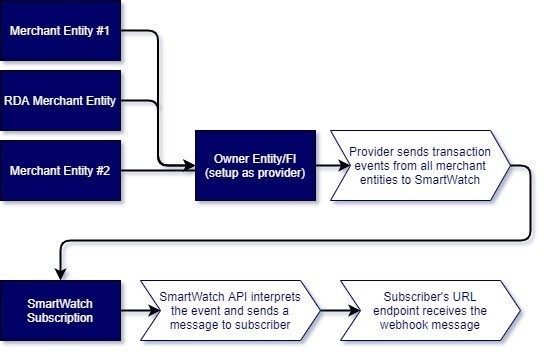
Owner Level Subscription
The below figure illustrates the Owner level subscription where all merchant entities (including RDA merchants) tied to the owner are passing transaction events to the webhook subscription.
Single Entity with Single Subscription
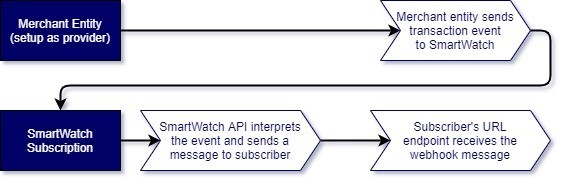
The below figure depicts a subscription that is only pulling transaction events from a single merchant entity. Only the merchant entity setup as the provider in the subscription will trigger webhooks messages to this subscription.
Single Entity with Multiple Subscriptions with Different Endpoints
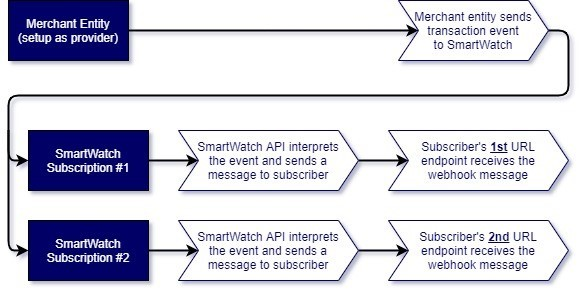
The below figure depicts how to setup subscriptions with multiple listening endpoints. Each subscription can only have one endpoint, so multiple subscriptions will be needed for different URL endpoints, even if each of the subscriptions is setup to send the same information.
Multiple Subscriptions with the Same Endpoint
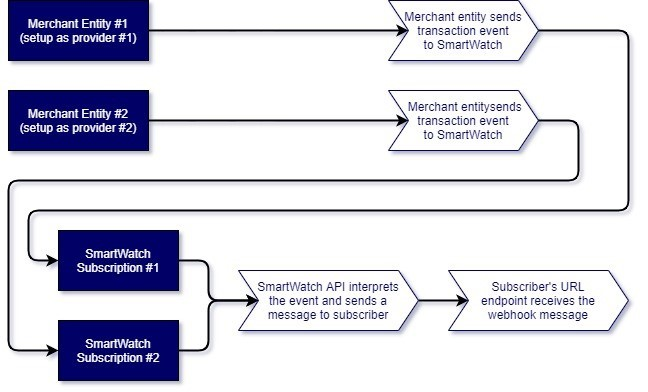
The below figure depicts multiple entities, each with their own webhook subscriptions, sending messages to the same listening endpoint. You can use the same listening endpoint with as many webhook subscriptions as you would like.