On-Boarding Configuration
Aspects of the configuration to be discussed and confirmed during the on-boarding process:
- Theming Configuration
- Encryption Algorithm
- Public Key Sharing
A consolidated list of details to be exchanged between the integrator and JHA PayCenter during the on-boarding process is captured in the Appendix - A and Appendix - B sections.
Theme Configuration
During on-boarding, the color theme must be specified for each financial institution. Various supported configurations and the default values are shown in the embedded document. In order to view the available color configuration options, review the embedded document below.
Colors
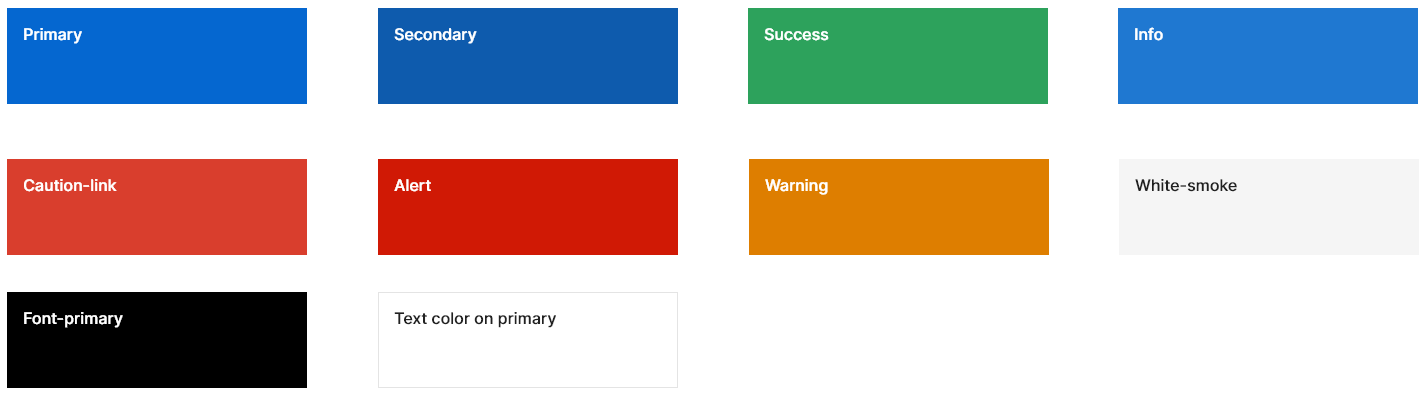
Schemes of Primary Colors (it can also be configured)
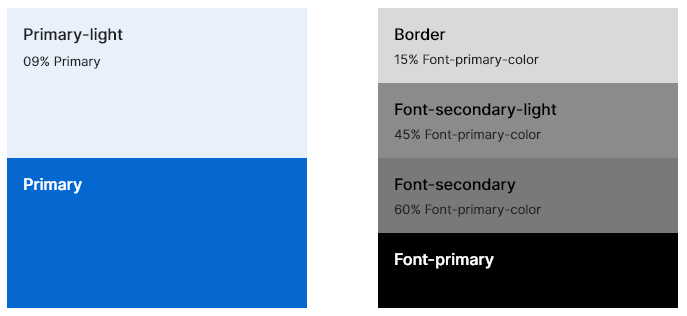
Default Colors
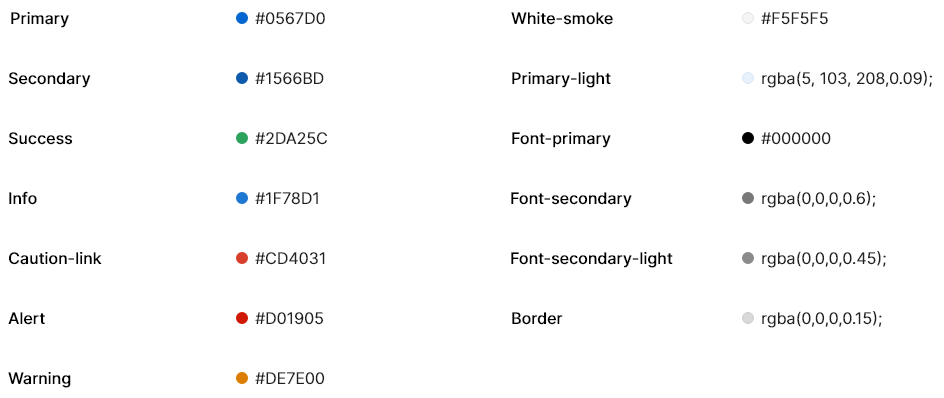
Primary Colors
A primary color is the color displayed most frequently across the screens.
Primary color used in:
Buttons, Link Button, Input fields, Icons.

Secondary Colors
A secondary color is used in combination with primary color to draw user attention.
Secondary color used in:
Highlighting the active tab, Selection controls like radio and check-box.

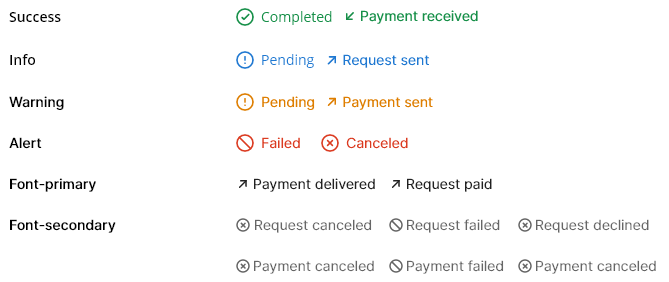
Activity Statuses
Text Colors


Screens
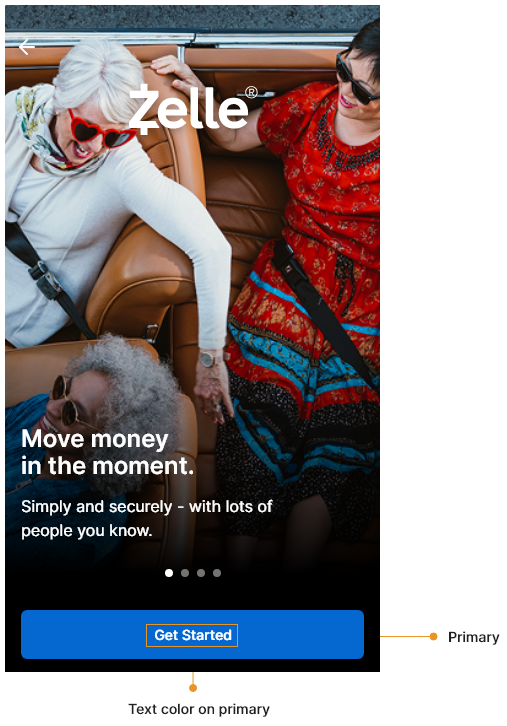
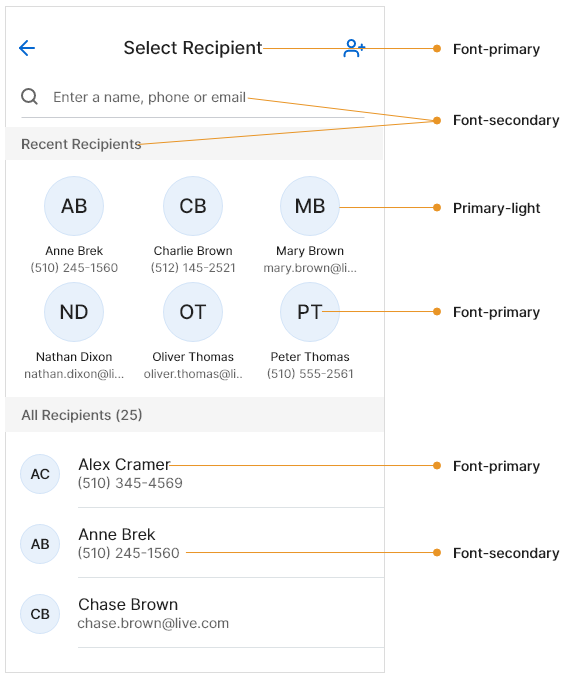
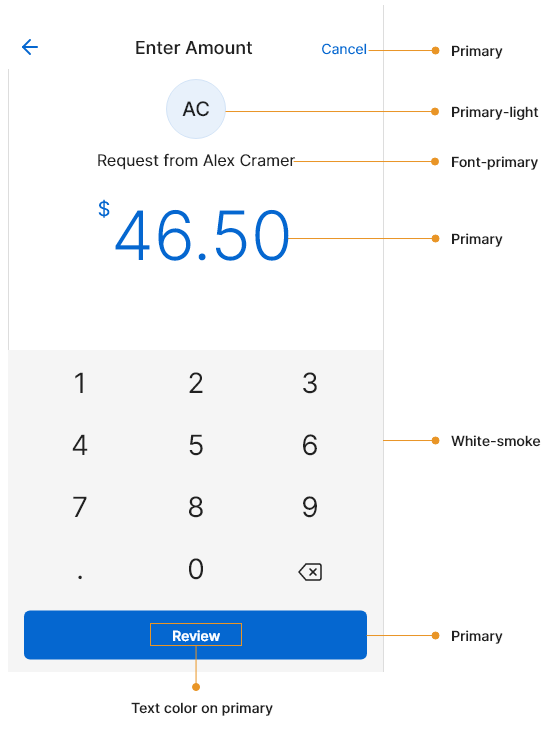
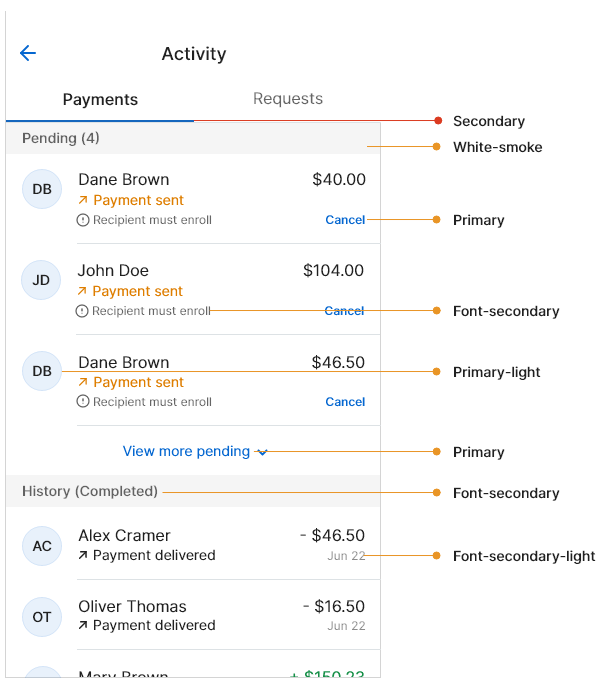
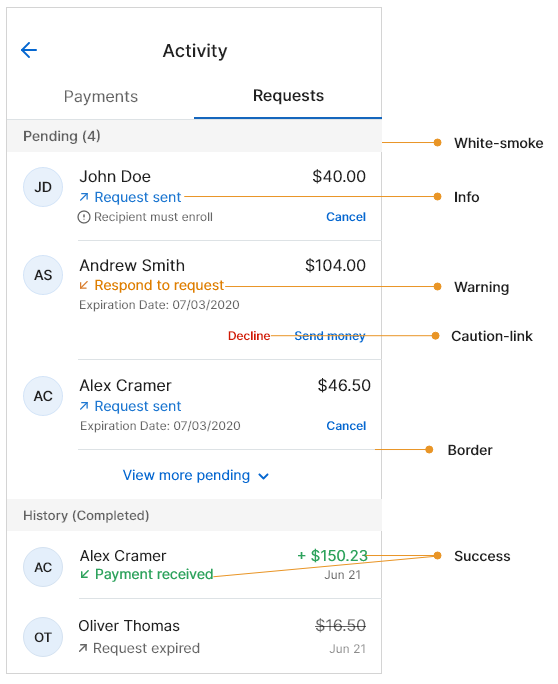
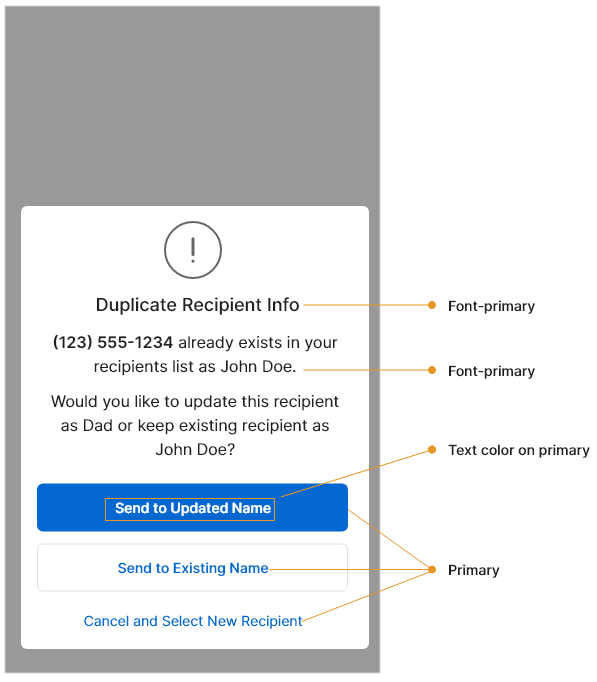
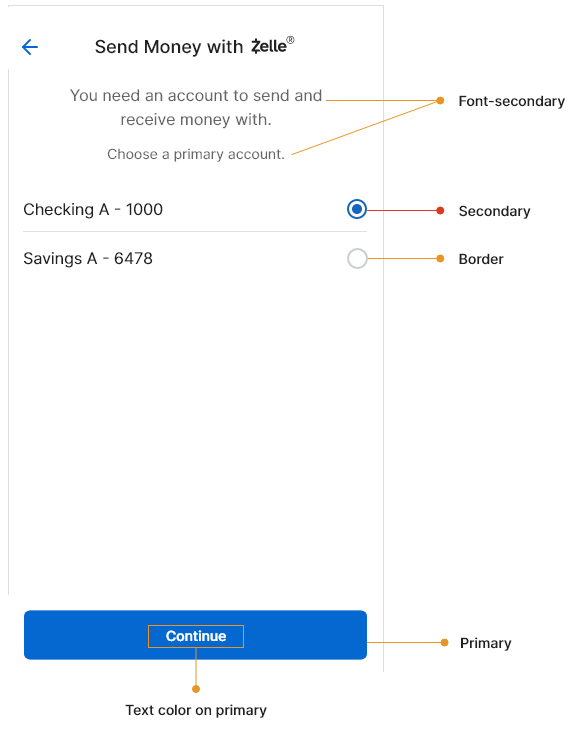
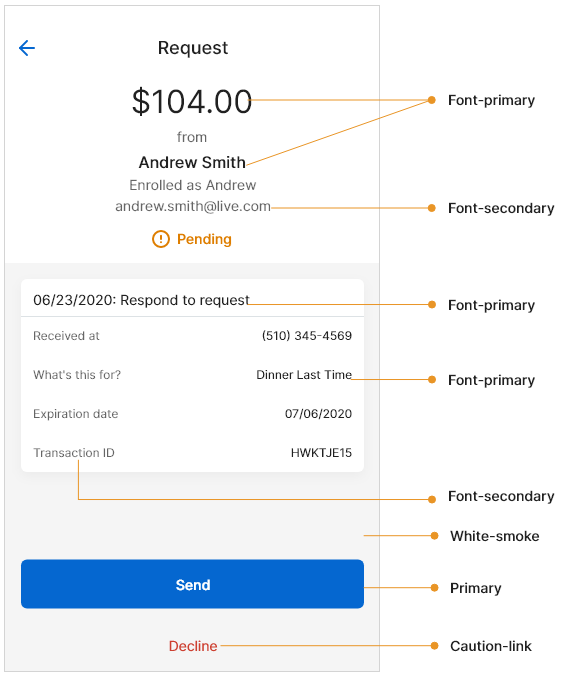
Available Color Configurations
| NO. | PARAMETER | DEFAULT VALUE | DESCRIPTION |
|---|---|---|---|
| 1 | Primary | #0567D0 | The primary color is the color displayed most frequently across the Zelle experience. It is used in primary buttons, primary links, input fields, and icons. |
| 2 | Secondary | #1566BD | The secondary color is used in combination with the primary color to draw the user's attention. It is used in highlighting the active tab or selection control, as in the radio or checkbox. |
| 3 | Success | #2DA25c | The color used to display the success messages. |
| 4 | Info | #IF78D1 | The color used to display the info messages. |
| 5 | Alert | #D01905 | The color used to display the alert messages. |
| 6 | Warning | #DE7E00 | The color used to display the warning messages. |
| 7 | Caution Link | #CD4031 | The color of the CTA button, which is used to cancel an action in progress. E.g. Decline CTA for the Payment Requests in the activity list page and in the activity detail page. |
| 8 | Primary Light | rgba (5, 103, 208, 0.09) | The lighter color of the primary color, used in the background for a few UI elements. E.g. It is the used as the background color for the initials of the recipient. It is recommended to use the primary font color with 9% opacity. |
| 9 | Font Primary | #000000 | The font used for high emphasis text. |
| 10 | Font Secondary | rgba (0, 0, 0, 0.6) | The font used for medium emphasis text. It is recommended to use the primary font color with 60% opacity. |
| 11 | Font Secondary Light | rgba (0, 0, 0, 0.45) | The lighter color of the secondary font color, used for low emphasis text. It is recommended to use the primary font color with 45% opacity. |
| 12 | Border | rgba (0, 0, 0, 0.15) | The color of the borders in various UI elements. It is recommended to use the primary font color with 15% opacity. |
| 13 | Font Color on Primary CTA | #FFFFFF | The color of the font to be used on the primary CTA button. |
In addition to the color configuration, font family and base font size must also be configured for each financial institution. Font sizes in the application are relative to the Base Font size.
Font default values:
- Font Family - Inter, Sans Serif
- Base Font Size - 16px
Encryption Algorithm
A suitable encryption algorithm must be agreed upon during the on-boarding process. The same algorithm will be used to generate a private-public key pair and with building the JWE token using the public key.
The following are the most common encryption methodologies that will be used:
| ALGORITHM | |
|---|---|
| 1 | RSA |
Key Sharing
A public key will be shared with the integrator for each financial institution and will be used by the integrator to encrypt any data sent to the Zelle Toolkit.
Zelle Landing Page
Each financial institution is required to have a marketing landing page hosted by JHA PayCenter. This landing page is where new users are directed after locating their bank on the Zelle website. The page contains general Zelle information and links to download the mobile banking applications in the app stores. To configure the landing page, several pieces of information are needed by JHA PayCenter. This information needs to be provided during onboarding for each FI.
- FI Name and Logo
- FI Home Page URL
- Support Number
- Support Email
- App store links for iOS and Android
JHA PayCenter will generate the landing page using this information based on a Zelle approved template.